
Automated Request Manager
Overview
As a feature of Smart fulfillment, use the Automated Request Manager (ARM) screen to configure automated ILL workflows. Automations are composed of match criteria you define along with actions you want the system to perform on matched requests.
To access this screen, sign in to OCLC Service Configuration, open the WorldShare ILL module from the left navigation, and then select Automated Request Manager.
The Automated Request Manager is divided into two tabs:
- Borrowing (Default)
- Lending
Automations are a combination of:
- Matches: What the request should look like.
- Actions: What the system should do with the request.
- Exceptions (Borrowing only): When you do not want these actions to occur.
- Priority: If a request matches multiple automations, which set of actions should be performed.
Notes:
- Previously configured Direct Request Profiles will appear in the Automated Request Manager as Automations.
Take a self-paced course
In this self-paced course, you will learn the benefits of using automations, and what information you should review and update before creating automations for an academic library. The course includes video demonstrations of creating borrowing and lending automations, and you will have opportunities to check your knowledge.
Launch courseIn this self-paced course, you will learn the benefits of using automations, and what information you should review and update before creating automations for a public library. The course includes video demonstrations of creating borrowing and lending automations, and you will have opportunities to check your knowledge.
Launch courseBibliographic matching
Bibliographic matching helps ensure that the library user receives the item they're expecting, and it happens automatically with Automation. When a user's request includes only partial bibliographic information, the system uses the provided information and applies a series of rules to identify the best-matched items.
The borrower best bib is the most widely held acceptable WorldCat record that the bibliographic matching selects from the pool of acceptable matches and is then used to decide which automation profile applies. The system searches WorldCat using each standard number on the request (ISSN, OCLC number, and ISBN) to determine bibliographic matches. Bibliographic matching can identify multiple acceptable WorldCat records and selects a borrower best bib to match an automation profile.
- For requests that go through an automation that either builds a lender string, or sends directly to lenders from a custom holdings path, the system will select the best-matched records from the libraries in the custom holdings path that hold the requested item. After bibliographic matching identifies all acceptable matches in WorldCat, the system examines your preferred lenders, as dictated by your selected Custom Holdings Path in the matched automation. Those records will be retained and recorded. Each lender can have a different OCN assigned to the request if they have holdings set on different records in WorldCat that represent your requested item.
- When no automation matches, or the matched automation does not include building a lender string or sending to lenders, the borrower best bib is used to update the request data.
Bibliographic matching is triggered automatically when a request is submitted via:
- WorldShare ILL request form
- with data from OpenURL
- with data typed into a blank request form
- FirstSearch
Note: Bibliographic matching does not occur when ILL staff manually create a request in the WorldShare ILL staff interface unless the request is then sent manually to automation. If staff change edition preference or edition text after a request was processed by automation, you will need to confirm whether your workflow sends the request to automation again so matching can use the updated values.
- When an ISSN or ISBN is provided, a title similarity check of 30% is required. For example, a value like "J Clin Psych" would be a match for Journal of Clinical Psychology but not for Journal of Business Economics.
- During the bibliographic matching process, the system will search for ISSN, then OCLC number, and then ISBN.
- If the request includes an OCLC number, an acceptable format follows that record.
- If the request has no OCLC number, format follows the most widely held search result, not primarily the format selected on the request form.
This edition and large print matching
When patrons or staff submit a borrowing request, they can choose an edition preference (Any edition, This edition, or Most recent edition) and can enter edition text (for example, "large print"). Previously, This edition and Most recent edition did not change which records bibliographic matching could treat as acceptable; matching followed the same rules as for Any edition.
If staff change edition preference or edition text after a request was processed by automation, you will need to confirm whether your workflow sends the request to automation again so matching can use the updated values.
Note: Libraries on the earlier single-match bibliographic matching path (a small number of institutions) are not affected by the addition of This edition and large print matching; behavior for those libraries remains the same.
For more information about adding Edition preference and Edition text to patron request forms, see Patron Request Workforms. If these fields are already included in your library's patron request forms, no additional configuration is needed.
This edition with an OCLC number
When This edition is selected and the request includes an OCLC number, acceptable matches are limited to that OCLC number. The system does not broaden matching using ISBN or ISSN from the request.
If no acceptable match is found on that OCLC number, the request follows the existing no-match path (typically moving the request to Review), with automation history explaining what occurred.
Note: If the edition preference in the request is Not specified/blank, it will now be treated like Any edition except if large print edition text applies. See Large print edition text below for more information.
This edition with an OCLC number matching behavior:
| Edition text | Edition preference | OCLC number on the request? | Matching behavior |
|---|---|---|---|
| Large print phrase detected | Any (including This edition) | Nein | Searches that run are filtered to large-print print-book records |
| Large print phrase detected | This edition | Ja | OCLC number restriction and large-print filter on that OCLC record |
| Large print phrase detected | Any | Yes (not This edition) | OCLC / ISBN / ISSN searches run as today, with results filtered to large print |
| No large print phrase | Any | Any | Unchanged (except This edition with OCLC number rule above) |
Large print in edition text
When edition text indicates large print (English and non-English phrases), acceptable matches are limited to large-print print-book records in WorldCat, using the same title-matching rules as today when ISBN or ISSN search is involved.
- Detection uses edition text (case-insensitive matching against approved phrases), including common English variants (for example, large print, large type, largeprint) and non-English phrases also indicating large print.
- This applies in addition to existing title, ISBN, ISSN, and OCLC number matching rules. When bibliographic matching searches for matches, results are filtered to large-print print books.
- Large print and This edition with OCLC number are independent. Both can apply on the same request (for example, This edition, an OCLC number, and large print in edition text). When both apply, ISBN and ISSN searches are skipped and the OCLC number result must satisfy the large-print filter.
- If no acceptable large-print match remains after filtering, the request follows the existing no-match path (typically moving the request to Review for staff intervention), with automation history explaining what occurred.
Large print in edition text matching behavior:
Note: Large print is a print book concept. Acceptable matches are limited to records WorldCat treats as large-print print books.
| Edition text | Edition preference | OCLC number on the request? | Matching behavior |
|---|---|---|---|
| Large print phrase detected | Any (including This edition) | Nein | Searches that run are filtered to large-print print-book records |
| Large print phrase detected | This edition | Ja | OCLC number restriction and large-print filter on that OCLC record |
| Large print phrase detected | Any | Yes (not This edition) | OCLC / ISBN / ISSN searches run, with results filtered to large print |
| No large print phrase | Any | Any | Unchanged (except This edition with OCLC number rule above) |
Best practices for matching
Matching uses values on the original request. Staff can set or correct edition preference, edition text, and OCLC number when creating or editing a request in the staff interface, before Send to Automation.
| If the patron or staff need… | Suggested approach |
|---|---|
| A specific WorldCat record (same manifestation, binding, or format) | Select This edition and enter the OCLC number for that record on the request before automation runs. |
| A large-print copy only | Enter clear large-print wording in edition text (for example, large print or large type). Use Any edition unless they also require a specific OCLC number. |
| A specific large-print record | Select This edition, enter the OCLC number, and include large-print wording in edition text. Matching applies both rules to that OCLC number. |
| The best chance of supply when any related edition is acceptable | Leave Any edition. Do not select This edition with an OCLC number unless that exact record is required. |
Persistence setting and Automated Request Manager
We recommend that libraries do not use constant data persistence and toggle the Persistence Setting to Off in the OCLC Service Configuration > WorldShare ILL > Constant Data module. Instead, apply constant data for both borrowing and lending via automation.
For borrowing requests:
- When the Persistence Setting is enabled in the OCLC Service Configuration > WorldShare ILL > Constant Data module, the DEFAULT constant data record overrides other Constant Data applications including through automation. If using automations to apply constant data on borrowing requests, turn off the Persistence Setting. See Constant Data.
For lending requests:
- Constant data persistence will be blocked on lending requests where automation has taken an action to apply a constant data record.
- When the Persistence Setting is enabled in the OCLC Service Configuration > WorldShare ILL > Constant Data module, and when an automation has taken an action to apply constant data on a request:
- Persistence will be disabled on that lending request.
- A warning message will appear in orange at the top of the screen alerting users that constant data persistence is turned on, but automation has already performed that activity, with a recommendation that constant data persistence be turned off in service configuration.
- When the Persistence Setting is enabled in the OCLC Service Configuration > WorldShare ILL > Constant Data module, and an automation has not taken an action to apply constant data on a request, constant data persistence will operate as usual.
Borrowing
Automations allow you to determine how patron-generated requests are processed. OCLC recommends creating at least one borrowing automation for loans and one for copies. Keep the following in mind when you are configuring automations:
- Automations are applied based on the Automation Priority setting. A patron-generated request is compared against all automations. Of all the automations that match the request, the automation with the highest priority, or lowest assigned Automation Priority number, will be applied to the request.
- Each automation must have a unique numerical value for Automation Priority.
- Assign the highest Priority (lowest number) to your most specific automations.
- Each automation must have at least one Match, Action, or Exception (not one of each).
- If you do not select any match criteria, your automation will apply to all requests.
- If you select matches but not actions or exceptions, all requests matching that automation will be routed to review.
Standard Actions for Borrowing
At the top of the screen is a list of the standard actions the system automatically performs on new borrowing requests.
Configure Main Automations for Borrowing
To add an automation:
- Select the Borrowing tab.
- Click + Add New.
- Enter a Name and assign a Priority. See Main Automation fields for Borrowing for more information.
- Select any desired match criteria from the Matches drop-down menu. See Automation Match criteria for Borrowing for more information.
- If you do not select a match criteria, the automation will apply to all requests.
- Click the
 Add a match button to configure additional match criteria.
- Select any desired actions from the Actions drop-down menu. See Automation Actions for Borrowing for more information.
- Click the Add an Action button to configure additional match criteria.
- Click the
- Click the Add an Exception option to select any Exceptions. See Automation Exceptions for Borrowing for more information.
- If any exceptions are true on a matched automation, only the exception will apply and the rest of the selected actions will not apply.
- Click Save.
To edit an automation:
- From the Main Automations list, select the Edit button associated with the desired automation.
- Edit information, as appropriate. Remove matches, actions, and exceptions with the remove button
 .
. - Click Save.
To delete an automation:
- From the Main Automations list, select the Delete button next to the desired automation.
- On the confirmation window, click Delete.
Main Automation fields for Borrowing
Automation Match criteria for Borrowing
Configure match criteria based on details of the request.
| Field | Description |
|---|---|
| Age of Material |
For Loans: For Copies: Type a whole number from 1-1000 representing the age of the material in years. |
| Formats |
|
| Languages | One or more languages that a request must specify if it is to match the automation. |
| Need at Earliest |
|
| Patron Departments |
Examples: |
| Patron Note |
Indicates if a patron has entered a note on the request. Match on:
|
| Patron Statuses |
Examples: |
| Patron Will Pay Up To |
Examples: |
| Request Sources |
Examples: |
| Request Type |
|
Automation Actions for Borrowing
Once you have determined which requests you would like to automate, Automations can be configured with specific actions.
Note: Some Actions are mutually exclusive from others. Unavailable actions are automatically removed as you build the automation.
| Field | Description |
|---|---|
| Apply Constant Data |
Select the Constant Data record, if any, that you want to apply to the requests matching this automation. Once you select this action, you will see a dropdown list of all current Constant Data records for your institution.
|
| Build Lender String |
Select this option if you want to build a lender string on the request without sending the request automatically out to lenders. Once you select this option, you will be asked to select a Custom Holdings Path from the full list of Custom Holdings Paths currently configured for your institution. The matching requests will have lender strings applied and moved to review.
Automation builds a lender string that considers the following:
When a borrowing automation includes a local holdings exception (e.g., If Held By My Institution), the system generates a recommended lender string before sending the request to your Review File. This process enables you to review requests for items held locally while keeping the recommended lender string intact for future reference, in case the request is later submitted through interlibrary loan. |
| Route Request to Review |
Automation will move matching requests to your Review queue. If you do not select an action that routes a request elsewhere (to lenders, purchase, or Document Delivery), this action will apply by default. |
| Route Request to Review for Purchase |
Requests will be sent to your Purchasing Requests > Review for Purchase queue.
|
| Send Request to Lenders |
|
Automation Exceptions for Borrowing
Configure exceptions in Automation that apply instead of the defined actions when they are true.
| Field | Description |
|---|---|
| If Duplicate Request, Route to Review |
Potential duplicate requests will be sent to your Review File. |
| If Held By Custom Holdings Group, Route to Review |
Examples:
Note: If the automation also includes the Build Lender String or Send Request to Lenders action, Automation builds a recommended lender string before routing the request to your Review File. The request will remain in your Review File until you decide whether to fulfill the request locally or send it to lenders. |
| If Held By My Institution, Route to Review | Requests will be sent to your Review File when your institution holds the requested item.
|
Use borrowing automations with WorldShare Interlibrary Loan
Automations allow you to determine how patron-generated requests are processed. Once a patron request has been submitted, with an automation, you can select whether the request, if matching the automation, should be produced (sent) to lenders or forwarded to your New for Review queue.
Keep the following in mind when you are creating your automations:
- Automations are applied based on the Priority setting. A patron-generated request is compared against all automations. Of all the automations that match the request, the automation with the highest priority, or lowest assigned Priority number, will be applied to the request.
- Each automation must have a unique numerical value for Priority.
- OCLC recommends creating an Automation for loans and an Automation for copies.
Basic borrowing automations
A recommended set of automations would Route Request to Review if the request is a duplicate or Route Request to Review if the item is held. If this automation is not configured, the system applies constant data and moves the request to review.
In the read-only borrowing automation summary, automations configured with Send Request to Lenders and a local holdings exception display Build Lender String beneath the exception. This reflects how Automation processes requests when a local holdings exception is encountered.
Examples
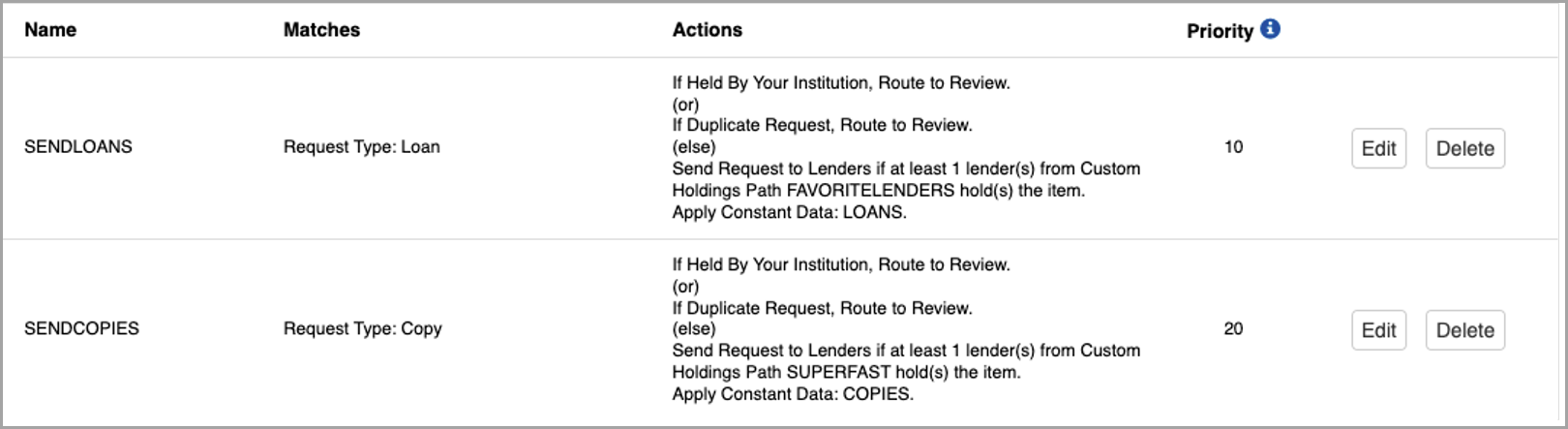
- LOANS:
If the request is not a duplicate and is not held by your institution, the system will apply the Constant Data record and build a lender string based on the holding libraries in the Custom Holdings Path and route the request to Review.
- Under Matches, select Request Type > Loan.
- Click the Add an Exception option and select If Duplicate Request, Route to Review.
- Click the Add an Exception option and select If Held By My Institution, Route to Review.
- Under Actions, select Send Request to Lenders and select the Custom Holdings Path to use.
- Click the Add an Action option and select Apply Constant Data and select the Constant Data record to use.
- COPIES:
If the request is not a duplicate and is not held by your institution, the system will apply the Constant Data record and build a lender string based on the holding libraries in the Custom Holdings Path and route the request to Review.
- Under Matches, select Request Type > Copy.
- Click the Add an Exception option and select If Duplicate Request, Route to Review.
- Click the Add an Exception optionand select If Held By My Institution, Route to Review.
- Under Actions, select Send Request to Lenders and select the Custom Holdings Path to use.
- Click the Add an Action option and select Apply Constant Data and select the Constant Data record to use.
Advanced borrowing automations
The following are examples of how to expand your automations.
Examples

- PATRONNOTE
Any requests that have a patron note will not be sent to lenders, allowing for staff to read the patron's note and fill the request accordingly.
- Under Matches, select Patron Note. Select the Any words checkbox to retrieve requests that have any patron note.
- Under Actions, select Route Request to Review.
- PURCHASE
Spanish Book requests will be routed to review for purchase.
- Under Matches, select Formats > Book.
- Select
 Add a match and select Language > Spanish.
 - Under Actions, select Route Request to Review for Purchase.
Lending
Using the Automated Request Manager, lenders can choose to apply designated constant data records to lending requests based on the identity of the borrowing library, the type of request, or the material format being requested. This ensures that lending charges, notes, policies, and addresses are accurately applied to lending requests, saving staff time and ensuring compliance with local policies and preferences.
- Automations are applied based on the Automation Priority setting. A patron-generated request is compared against all automations. Of all the automations that match the request, the automation with the highest priority, or lowest assigned Automation Priority number, will be applied to the request.
- Each automation must have a unique numerical value for Automation Priority.
- Assign the highest Priority (lowest number) to your most specific automations.
- If you do not select a match criteria, the automation will apply to all requests.
Standard Actions for Lending
At the top of the screen is a list of the standard actions the system automatically performs on new lending requests. All libraries will see the actions on the left of the screen:
- Deflections
- Supplier status check
- Knowledge base holdings check
- Group affiliations check
- Time to Respond
- Real time availability check
Configure Main Automations for Lending
To add an automation:
- Select the Lending tab.
- Click + Add New.
- The Enable box will be checked by default and the automation will immediately be in effect upon saving. The automation will display Yes in the Enabled column.
- Enter a Name and assign a Priority. See Main Automation fields for Lending fields for more information.
- Select any desired match criteria from the Matches drop-down menu. See Automation Match criteria for Lending for more information.
- Click the Add a match button to configure additional match criteria.
- Click the
- Select any desired actions from the Actions drop-down menu. See Automation Actions for Lending for more information.
- Automations that specify actions but no Match criteria will match all requests.
- Click the Add an Action button to configure additional match criteria.
- Click Save.
To edit an automation:
- From the Main Automations list, select the Edit button associated with the desired automation.
- Edit information, as appropriate. Remove matches, actions, and exceptions with the remove button .
- Click Save.
To delete an automation:
- From the Main Automations list, select the Delete button next to the desired automation.
- On the confirmation window, click Delete.
Main Automation fields for Lending
| Field | Description |
|---|---|
| Enable |
By default, when an automation is created, the Enable box will be checked and the automation will immediately be in effect upon saving. The automation will display Yes in the Enabled column. Staff can edit automations and uncheck the Enable box so the automation is no longer in effect and displays as No in the Enabled column. |
| Name* |
The name of this automation (40-character limit) that indicates the scope of the group of requests to which the automation pertains. The name must be unique.
|
| Priority* |
Set a numeric priority to each automation. The priority must be a positive integer of 9 digits or less.
|
Automation Match criteria for Lending
| Field | Description |
|---|---|
| Borrower Group |
|
| Formats | |
| Request Type |
Specify copy or loan requests:
If no request type is selected, the automation will apply to both copy and loan requests. |
Automation Actions for Lending
| Field | Description |
|---|---|
| Apply Constant Data | Apply a designated Lender Constant Data record as an action. |
Use lending automations with WorldShare ILL
Refer to Automated Request Manager for Lending for use cases and examples.
Use Reports to assess automations
Refer to Assess automations to learn how to access and use the Borrower Resource Sharing and Lender Resource Sharing Stats Reports to track your library's use of automation.