WorldShare Record Manager release notes, March 13 2025
Release Date: March 13, 2025
Introduction
This release of WorldShare Record Manager provides three new features and enhancements in addition to three bug fixes. These features will help you manage more complex workflows, including:
- Automatically filter to branch on the Copies screen based on the user's branch selection
- New preference to limit duplicate call number check within the same branch in LHR editor and text view editor
- Delete records from a Saved- In Progress file result list
- Bug fixes:
- Bibliographic export lists did not display temporarily
- Fields were incorrectly re-ordered after reformatting a bibliographic record
- Inserting content from a cited record did not omit initial article
These enhancements are the direct result of your feedback.
Recommended actions
For this release, we recommend that you review the new Institution Setting and User Preference so that you can adjust your policies and workflows and train your staff. We encourage you to review all of the items in the release notes to determine whether there are other items that might require additional action or follow up by your institution.
Administrative actions
These items require immediate action or decisions.
| Action: Review new settings |
|---|
|
Decide if you want to make use of the new Institution Setting for pre-filtering the branch library on the Copies page. If you want to enable this option, log in with a Cataloging Admin role and adjust your Institution Settings. |
New features and enhancements
Automatically filter to branch on the Copies screen based on your branch selection
This new option allows you to pre-filter the list of copies you see in the LHR text-view mode to the branch you selected when logging in to WMS or when changing the default branch library. A use case for this is that you only want to see or edit copies for a specific branch.
Please note that this feature applies only to the LHR text-view mode, not to the LHR MARC21 editor, LHR result lists or the list of LHRs for a bibliographic record viewed in MARC21.
New Institution Setting for branch selection
A new Institution Setting is now available that allows you to enable or disable the new option "Pre-filter copies list based on selected branch from login screen". You have to be logged in as a user with the Cataloging Admin role to see and edit Institution Settings.
The new parameter can be found under the Miscellaneous tab.
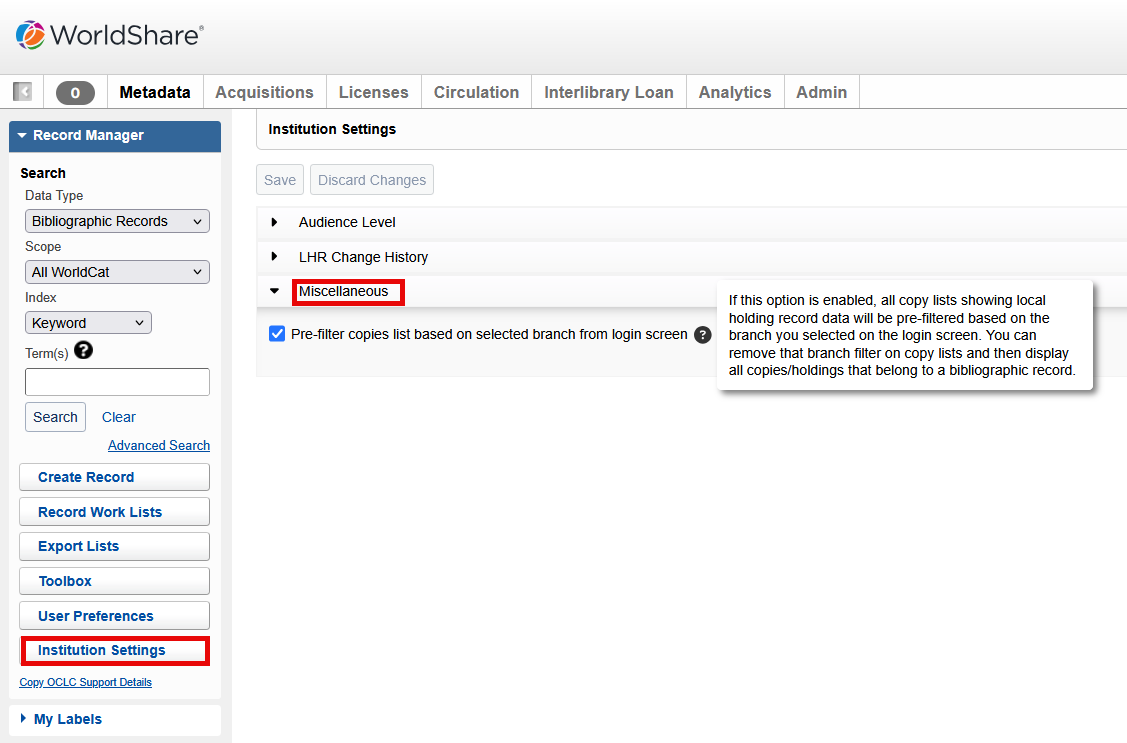
Please note that since this is an Institution Setting, it will apply to all users of your institution. It also applies to workflows in Acquisitions or Circulation.
Pre-filter selected branch library on the copies list
When viewing local holdings records (LHRs) in the text-view mode in Record Manager, Acquisitions, and Circulation and having the above described Institution Setting enabled you will now see the copies list pre-filtered by the branch you selected on the login screen or when changing the preferred branch.
In this example, the selected branch is "East" AND the Institution Setting is enabled, which is why the copies list is already filtered by branch East:

If you want to see the complete list of copies for this title, you have to click "Reset" to undo the branch filtering. This will remove the filtering for East and show the full list of copies. In the below example, the branch selection is reset to "Any" and you see additional copies for branch "South".

Please note:
The filter(s) you have selected will persist during the current session (this is existing functionality). This means that the pre-filtering based on your branch selection will only work until you either reset the filtering or choose another branch filter.
New preference to limit duplicate call number check within the same branch in LHR editor and text view editor
This is an extension to the already existing "duplicate call number check" functionality. You can now set a user preference to limit the call number check to items in the same branch only.
New user preference for duplicate call number check based on the branch
A new user preference "Check for duplicate call number only within the same branch" was added under User Preferences / Working with Records / LHRs. It can only be enabled if the related user preference "Check to see if a duplicate call number would be created before saving an LHR" is active.

This new user preference is disabled by default.
Perform duplicate call number check based on the branch
If you have enabled the new user preference "Check for duplicate call number only within the same branch" by checking the checkbox next to it, then the duplicate call number check will only look at items that are in the same branch. If a duplicate call number exists in a branch that is different from the one that the item you're currently working on is in, then no duplicate call number will be reported.
Delete records from a Saved- In Progress file result list
You will now be able to delete multiple records from a Saved - In Progress file result list. Previously each record had to be deleted individually. This allows you to clean up your Saved - In Progress file more efficiently.
Select either all records on the page you're viewing by clicking the checkbox in the result list header or select individual records by clicking the checkboxes next to them.

The button "Delete (xx)" in the list header shows the number of records you have already selected. Clicking the Delete button will delete all selected records from the Saved - In Progress file.
Bug fixes
Bibliographic export lists did not display temporarily
Existing bibliographic export lists display now correctly under Export Lists. Previously, export lists were not visible temporarily and then re-appeared after a certain time.
Fields were incorrectly re-ordered after reformatting a bibliographic record
Fields that users don't want to display in numerical order (e.g. 5xx or 6xx fields) will not display in the order they were added to the record. Previously, these fields were re-ordered numerically after reformatting a bibliographic record or applying a Constant Data record to it.
Inserting content from a cited record did not omit initial article
After using the "Insert from cited record" option to add content from another record to the current bibliographic record, the initial article will now be omitted. Previously, the initial article was not removed from the content that was pulled in.
Important links
Support website(s)
Support information for this product and related products can be found at: