
Show all pages of PDF in viewer
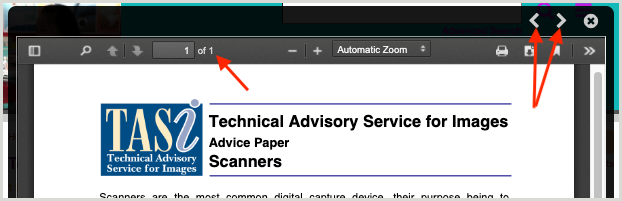
In CONTENTdm, you can choose to ingest a multi-page PDF as a compound object. It’s as if the PDF is broken into individual one-page PDFs. As a result, when you click the Expand button to view the PDF, you get a single page each time, and need to rely on the previous page (<) and next page (>) buttons. This is inconsistent with other types of content, and creates a less desirable, non-standard PDF viewing experience.
Image 1 - Multi-page PDF broken into one-page PDFs
This recipe will utilize the print PDF created during the ingest process, and show the print PDF instead of the one-page PDFs in the expanded view. You can simply scroll to view other pages:
Image 2 - Print PDF utilized to enable scrolling

The cool thing is, any page you are on, when you click the Expand button ( ), the viewer will scroll to show you the current page:
Image 3 - Page 3 selected

Image 4 - Page 3 displays in expanded view

Caution: The search term does not pass through to the expanded PDF viewer when performing a search with this recipe, meaning the search term is not highlighted in the viewer. You can, however, do a manual search in the PDF viewer. Please evaluate your needs to determine if you want to use this recipe.