
Image display in WorldCat.org
OCLC does not load cover art for individual titles due to the large volume of titles covered in WorldCat, but instead we load large files from a variety of providers, with whom we have contractual relationships.
Titles that do not include cover art will show the default images below.
- Cover art default icons
-
Format/Facet in WorldCat.org
label for displayCover art default icon Archival Material 
Article/Chapter 
Audiobook 
Book 
Computer File 
Encyclopedia 
Game 
Image 
Interactive Multimedia 
Internet Resource 
Journal/Magazine 
Kit 
Map 
Music 
Musical Score 
Newspaper 
Object 
Sound Recording (Other) 
Toy 
Unknown Default 
Video 
Visual Material 
View thumbnails from digital repositories synced through WorldCat Digital Collection Gateway
Collections from CONTENTdm and other OAI-PMH compliant digital repositories which have been synced through WorldCat Digital Collection Gateway will display a thumbnail image in the brief results and detailed view in WorldCat.org. For more information on syncing your collection, see Digital Collection Gateway.
- CONTENTdm sites automatically include a thumbnail. If you are using a different OAI-PMH compliant repository, see Use the Digital Collection Gateway, Add a thumbnail image for more information.
| Digital repository | Required fields/subfields to display thumbnail in WorldCat.org |
|---|---|
| CONTENTdm |
WorldCat.org will use the URL in the 856 u to display as the thumbnail. |
| Other OAI-PMH compliant digital repositories |
WorldCat.org will use the URL in the 856 u to display as the thumbnail. |
View images from CONTENTdm digital repositories
Engage with images from CONTENTdm digital repositories using an International Image Interoperability Framework (IIIF) viewer.
To qualify for viewer use, the image and CONTENTdm repository must meet the following qualifications:
- Originates from a hosted CONTENTdm site
- Images must be saved with IIIF enabled in the CONTENTdm repository
- Have been synced through Digital Collection Gateway to create a citation in the WorldCat database
- CONTENTdm-hosted sites with custom domains must have a valid HTTPS certificate on file with OCLC
You can click the Enlarge button below images that qualify for viewer use on both the Search Results and Item Details screens:
| Screen | Image |
|---|---|
| Search Results | 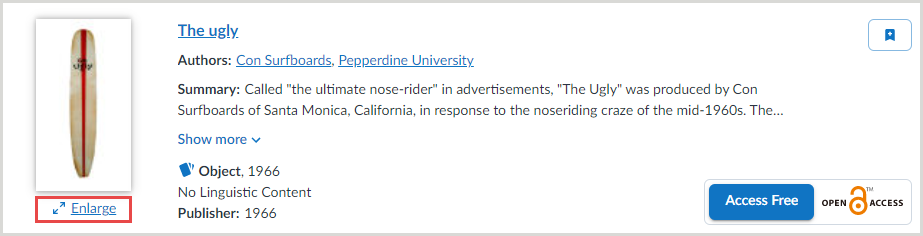 |
| Item Details | 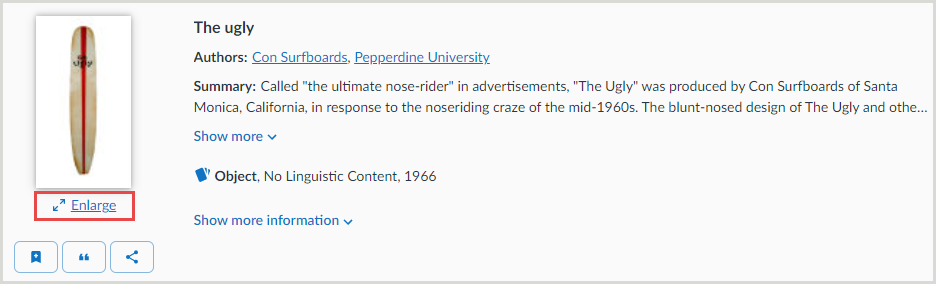 |
Selecting the Enlarge button will open the image in the viewer as a modal. Options in the viewer include:
- Image viewer - Example
-
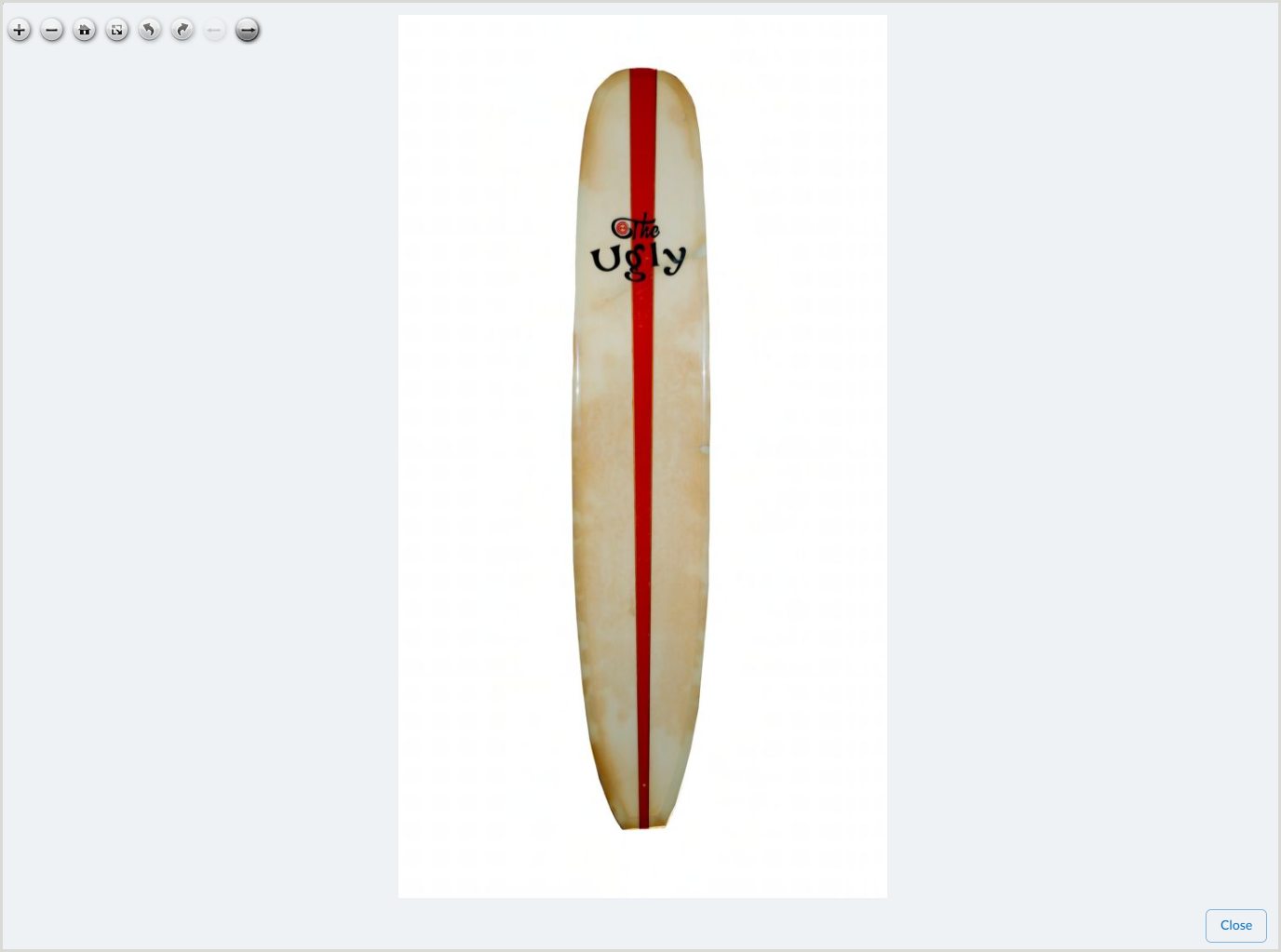
| Option | Option button | Description |
|---|---|---|
| Zoom in |  |
Click to zoom in on the image. You can click this button up to three times to enlarge the image. |
| Zoom out |  |
Click to zoom out from the image. This button can be clicked up to three times to decrease the image. |
| Go home |  |
Click this button after zooming in on the image to return it to its original view. |
| Toggle full page |  |
Click this button to expand the image to fill your entire screen. Click Esc to exit full screen. |
| Rotate left |  |
Click this button to rotate the image to the left. |
| Rotate right |  |
Click this button to rotate the image to the right. |
| Previous page |  |
Click this button to return to the previous image.
Note: This button is inoperative until you click the Next page button. |
| Next page |  |
Click this button to view additional images. |