
CapiraMobile release notes, August 2026
Release Date: August 11, 2026
Introduction
This release of CapiraMobile provides new features and enhancements for users on the newest version of the app with Staff Dashboard access.
- Bottom Navigation Configuration in Staff Dashboard
-
Users can view their library card in Google/Apple Wallet
- Users can now more easily scan their mobile library card with updated placement in the app
Many of these enhancements are the direct result of your feedback.
Recommended actions
Select enhancements and bug fixes require users to update or restart their app. If your users do not see the expected changes, please confirm they have installed or updated their app to the latest version, and ask them to force close and restart the app. We encourage you to review all of the items in the release notes to determine whether there are other items that might require additional action or follow up by your institution.
Administrative actions
These items require immediate action or decisions.
| Action |
|---|
|
Staff Dashboard — Bottom Navigation Review Required:
|
New features and enhancements
Bottom Navigation Configuration in Staff Dashboard
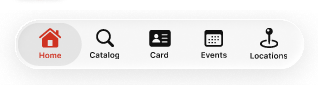
A new "Navigation" section is now available in the Staff Dashboard, giving libraries direct control over the labels and destinations that appear in the app's bottom navigation bar.
Please note: Changes your library makes now will not go live until our September release. The Staff Dashboard portion is available for your library to configure before changes roll out to the app. This allows libraries time to discuss which configuration works best.

Benefits
- Your staff can customize the labels for standard navigation destinations — Home, Search, Library Card, and Events — to match your library's preferred terminology or branding.
- Your staff can enable an optional fifth navigation item, selecting both its action and label, or disable it entirely.
Impact
- Bottom navigation customization was previously not configurable from the Staff Dashboard; libraries can now manage this directly without additional assistance.
Configuration
- Navigate to the new "Navigation" section in the Staff Dashboard to customize navigation labels and configure the optional fifth item.
- Options include:
- Standard Navigation Items terminology
- Home or Welcome
- Catalog or Search
- Library Card or Card
- Events, Calendar, Programs, or Services
- Optional Navigation Item action and label
- Action: Location Information; Label: Location or Locations
- Action: Contact; Label: Contact or Contact Us; Action Value: Select whether you would like to point to a custom screen you have created or use a built-in call and email modal.
- Standard Navigation Items terminology
- See Administrative Actions for important steps required before the early-September app release.
Mobile Library Card Enhancements

Users can view their library card in Google/Apple Wallet
Your users can now add their library card directly to Google Wallet or Apple Wallet from the Library Card screen in the app, using a clearly labeled button.
Benefits
- Your users can access their library card at any time without needing to open your library's app, making it faster and more convenient to use at the library.
Impact
- Previously, your users were required to open the app and navigate to the Library Card screen to present or scan their card. Your users can now access their library card directly from their device's wallet, even without opening the app.
Configuration
Enabling and Branding the Feature
- To enable this feature:
- Navigate to Options > Account in the Staff Dashboard
- Select the Card Settings tab
- Toggle on Enable Wallet Passes
- Save your changes to activate the feature for your users.
- To upload a branded logo for the wallet pass:
- In the Media Library, upload a minimum 660×660 PNG image with your logo centered, approximately 15% margin, and a solid background
- Navigate to Options > Account
- Select the Card Image tab.
- Under the Wallet Pass Branding section, click the "Select From Media Library" button
- Select your image from the Media Library
- Save your changes
- The background color of your library's wallet pass is automatically derived from the bottom navigation background color configured in the Styles section of the Staff Dashboard. To adjust this color, navigate to Styles and update the bottom navigation background color accordingly.
iOS vs. Android Behavior
- Apple Wallet (iOS): Once a patron adds their library card to Apple Wallet, any subsequent changes made in the Staff Dashboard — such as logo updates, color changes, or card number changes — will not automatically update in the patron's wallet. Patrons must delete the existing pass from Apple Wallet and re-add it to receive the latest version.
- Google Wallet (Android): Configuration changes made in the Staff Dashboard will automatically carry over to the patron's Google Wallet pass — no action is required from the patron.
Barcode Format Considerations for Apple Wallet
- Due to barcode restrictions on Apple iOS 26 and earlier, Apple Wallet currently renders barcodes in Code 128 format. If your library has selected Codabar or CODE 39 as your digital barcode format in the Staff Dashboard (Options > Account > Card Settings > Digital Barcode Format), Apple Wallet will automatically convert the barcode to Code 128 when a patron adds their card to their wallet.
- If your library's barcode scanners support Code 128, patrons can use their Apple Wallet pass without any issues.
- If your library's barcode scanners do not support Code 128, the wallet pass barcode may not scan successfully at checkout — and the cause may not be immediately apparent. In this case, we recommend not enabling the Wallet Passes feature until your scanning equipment supports Code 128 or you feel that most of your Apple device users are on iOS 27 and above.
Users can now more easily scan their mobile library card with updated placement in the app
The digital barcode on the library card screen has been moved to the top of the screen on both iOS and Android.
Benefits
- Your users experience more consistent and reliable barcode scanning at self-checkout stations, regardless of whether a card image is configured for your library.
Impact
- The barcode now appears at the top of the library card screen, rather than its previous lower position on the screen.
Bug fixes
iOS Search Filter Returning a Blank Screen
Your users can now select material types, search types, and sort options on iOS without the screen going blank. Previously, libraries with large amounts of filter options would encounter a blank screen after selecting a filter.
iOS Account Notifications Not Delivering on Locked Devices
Your iOS users now reliably receive account notifications — such as holds ready and new fines alerts — even when their device is locked. Previously, notifications would fail to deliver if the device was locked at the time of delivery.
Android Banner Alerts Displaying a Broken "Read More" Button
Android banner alerts now correctly hide the "Read More" button when no URL is configured, matching the existing behavior on iOS. Previously, a non-functional "Read More" button would appear when no URL was associated with the alert.
What's coming next
The following section highlights our target roadmap. Screenshots shown are concepts intended to illustrate direction and may change as we continue development.
Fall 2026
View your digital holds and checkouts for CloudLibrary, Hoopla, and Overdrive, alongside physical materials in your account
Patrons will be able to view and manage their digital holds and checkouts from OverDrive, Hoopla, and CloudLibrary alongside their physical items in the app.
Image Preview Design mockup shown; final implementation may change.

See improved app navigation with refreshed header and bottom navigation
A modernized header and bottom navigation will allow your library to display meaningful navigation for your users.
Image Preview Design mockups shown; final implementation may change.

Important links
Support website(s)
Support information for this product and related products can be found at: